
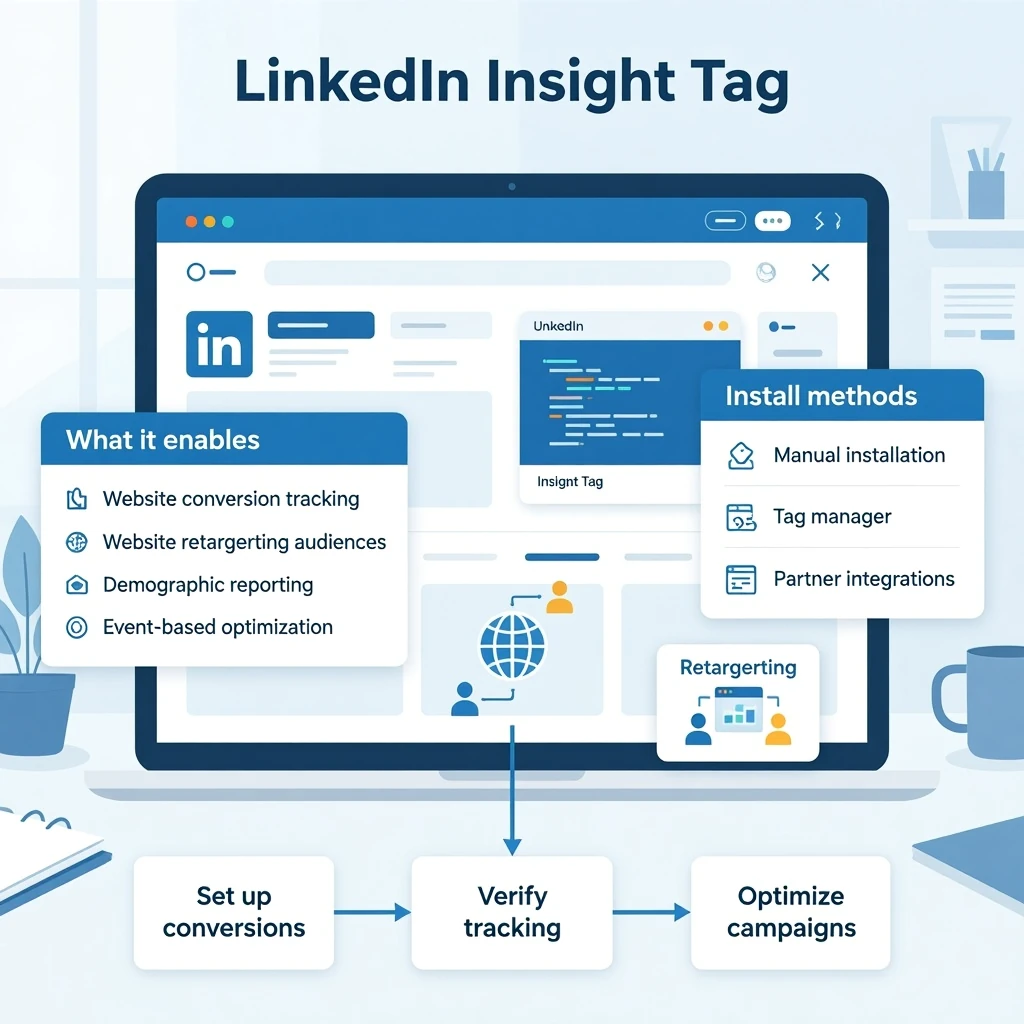
Conversion tracking is the backbone of performance advertising on LinkedIn. Without accurate tracking, you can’t measure ROI, optimize bidding, or understand which audiences and creatives drive results. The LinkedIn Insight Tag powers all conversion tracking, retargeting, and website analytics. This pillar explains how the Insight Tag works, how to set up conversions, how to verify tracking, and how to use conversion data to optimize campaigns.
Insight Tag Overview
The Insight Tag is a lightweight JavaScript snippet placed on your website. It enables:
- Website conversion tracking
- Website retargeting audiences
- Demographic reporting
- Event‑based optimization
The tag functions similarly to the Meta Pixel or Google Ads Tag but is optimized for B2B behavior and professional identity data. Once installed, it tracks page views and events across your site.
Installing the Insight Tag
There are three installation methods:
- Manual installation — paste the tag into your site’s <head> section.
- Tag manager installation — use Google Tag Manager or another tag manager to deploy it.
- Partner integrations — Shopify, WordPress plugins, HubSpot, and other platforms offer native integrations.
The tag should fire on every page to ensure full tracking coverage. After installation, LinkedIn typically verifies the tag within minutes.
Setting Up Conversions
Conversions represent the actions you want to measure. Common examples include:
- Demo requests
- Contact form submissions
- Whitepaper downloads
- Webinar registrations
- Pricing page visits
- Add‑to‑cart or purchases (for B2B e‑commerce)
You can track conversions using:
- URL‑based rules (e.g., “thank‑you” pages)
- Event‑based tracking (button clicks, form submissions)
- Lead Gen Form submissions (tracked automatically)
Event‑based tracking is more accurate for modern websites that use modals, AJAX forms, or dynamic content.
Verifying Tracking
LinkedIn provides built‑in diagnostics to confirm:
- The Insight Tag is firing
- Events are triggering correctly
- Conversions are being recorded
- Retargeting audiences are populating
Verification ensures your campaigns optimize correctly. Without verified conversions, LinkedIn cannot optimize for CPL or CPA.
Using Conversion Data for Optimization
Conversion tracking influences:
- Bidding — Cost Cap and Maximum Delivery optimize toward users likely to convert.
- Audience quality — You can identify which segments produce high‑value leads.
- Creative performance — You can see which ads drive conversions, not just clicks.
- Funnel analysis — You can measure drop‑off between clicks and conversions.
Conversion data is essential for scaling campaigns efficiently.
Retargeting with the Insight Tag
The Insight Tag enables powerful retargeting audiences:
- All website visitors
- Specific page visitors
- Pricing page visitors
- Blog readers
- High‑intent segments (e.g., “visited 3+ pages”)
Retargeting audiences are smaller but convert at significantly higher rates. They are ideal for bottom‑funnel offers like demos, consultations, or trials.
Common Tracking Mistakes
- Not installing the tag site‑wide
- Relying only on URL rules when forms don’t redirect
- Forgetting to exclude internal traffic
- Not testing events before launching campaigns
- Tracking too many micro‑conversions, diluting optimization
Clean, accurate tracking is essential for reliable reporting.
Using Conversion Data in Reporting
LinkedIn’s reporting tools allow you to analyze:
- Conversion rate
- Cost per conversion
- Conversion demographics
- Conversion by creative
- Conversion by audience segment
This data helps you refine targeting, improve messaging, and allocate budget more effectively.